
Host a server.
Make it your own.
Your maps, your rules, your regulars. Run a Counter-Strike server on your own machine and let players join straight from their browser.
No sign-in needed to explore. Start setup when you’re ready.
Before you start
You provide the host. CSJS provides the setup and management tools.
- A Docker host
- A machine that can run
linux/amd64containers, with Docker installed and terminal access. Keep it running while people play. - Your game files
- Your own Half-Life and Counter-Strike installation, including the complete
valve/andcstrike/folders on that machine. - A public connection
- A reachable IP or domain and access to your firewall. The standard setup uses TCP 3333 for play and TCP 80 for automatic HTTPS certificates.
Create your server
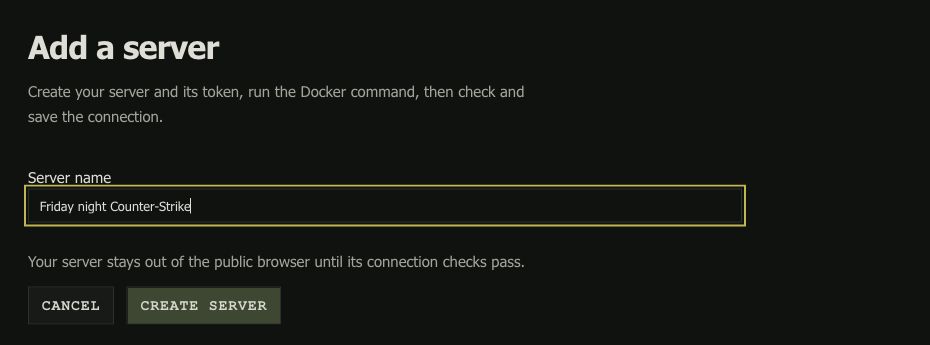
Choose Start setup, then sign in or create an account. Give your server a name and select Create server. The dashboard generates a private server token and a Docker command for this server.
Your server stays out of the public server browser until its connection checks pass and you save the connection. You can leave setup and continue later from My servers.
Run it with Docker
On your Docker host, find the folder containing both valve/ and cstrike/. In the setup form, enter its absolute path under Path to game on Docker host. Copy the complete generated command and run it in that machine’s terminal.
Example directory on your Docker host
/srv/half-life/
  valve/
    gfx.wad
  cstrike/
    maps/de_dust2.bsp
Copy the complete game folders, not just the two files shown. Docker downloads csjs/server:latest when needed and mounts your game files read-only. A dedicated Docker volume keeps the server installation and certificate state.
Keep Automatically set up TLS enabled for the standard public setup. Allow these inbound ports in your host firewall and, when needed, forward them through your router:
| Public port | Used for |
|---|---|
| 3333 / TCP | Browser play and dashboard access to your server. Use your chosen host port if you changed it. |
| 80 / TCP | Automatic certificate issuance and renewal. The generated command maps it to container port 8081. |
Keep the command private: it includes your server token. Use the command generated for your server, rather than the shortened example in the video.
Check the connection
Once the container is running, return to Connect your server. Enter your public IP or hostname without a protocol or port, then enter the exposed port separately. The default is 3333.
- HTTPS certificate
The connection is encrypted and the certificate matches your address.
- Game server
Counter-Strike responds over its WebSocket connection.
- Server agent
The CSJS management agent is reachable and compatible.
Select Check connection. Resolve any reported failures, then select Save connection when the checks pass. Production hosting requires HTTPS/WSS so browser players can connect securely.
Make it yours. Bring your players.
Open the server from My servers to see its current map and players, change maps, edit configuration, restart the game, and apply available updates. Start with your preferred map and rules.
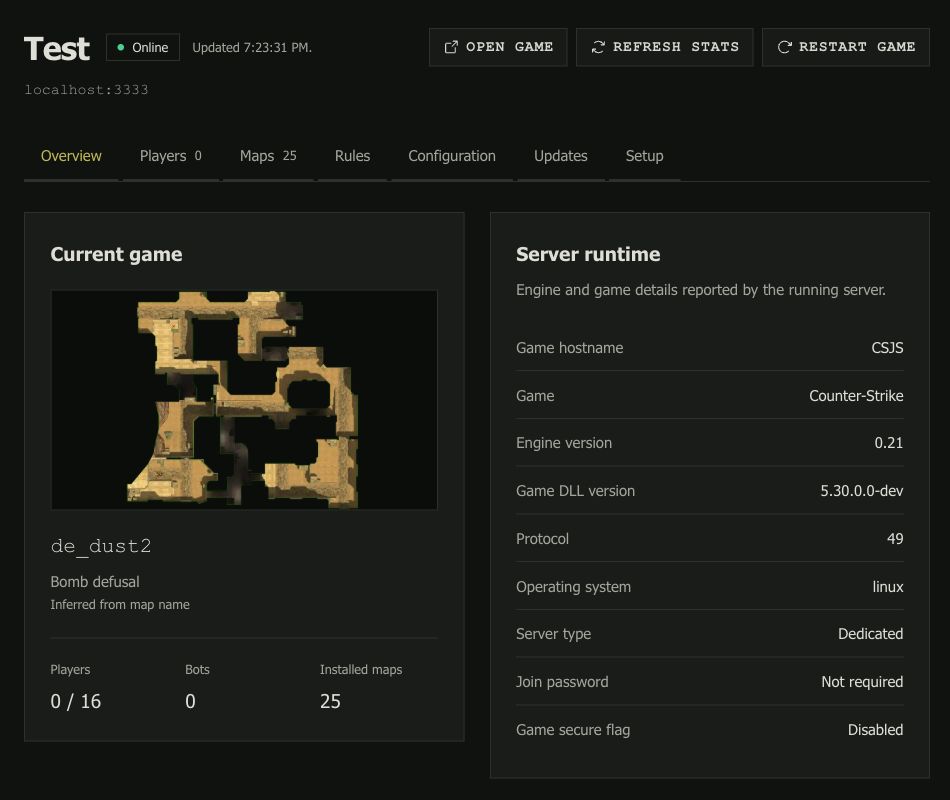
Select Open game to join, then share that page’s link. Players can also find your connected server in the public server browser. They don’t need an account to play.
Something not connecting?
The HTTPS certificate check fails
Use a public IP or hostname that reaches your Docker host. With automatic TLS, public TCP port 80 must reach the container’s challenge listener, and your selected game port must also be open. Check your cloud firewall and router forwarding. A private IP or localhost cannot receive a public IP certificate. The first certificate request can take time; inspect the container logs before retrying.
The game server or agent cannot be reached
Check that the container is running and that the port you entered matches the host port in your Docker command. Supply the complete valve and cstrike game folders, including valve/gfx.wad and cstrike/maps/de_dust2.bsp. The container needs its server token and access to the CSJS master to download releases and load saved configuration before starting the game.
I already have a domain and reverse proxy
You can terminate HTTPS at your existing proxy. Turn off automatic TLS in the setup form, point the proxy to the container’s HTTP port 3333, and enable WebSocket forwarding. Enter the public domain and its HTTPS port in the dashboard. Browser players still need a trusted HTTPS/WSS endpoint.
Can I host from home?
Yes, if your machine can run the Docker image and has a publicly reachable address. Forward the required TCP ports through your router and allow them in your firewall. If your ISP uses carrier-grade NAT, inbound connections may not reach you; use a host with a public address or arrange public connectivity with your provider.
Do players need accounts or game downloads?
Players can join from the CSJS server browser or your game link without signing in. Hosting requires an account so the dashboard can manage your server. You provide your own Half-Life and Counter-Strike game files on the Docker host; they are not included in the server image.
Need the deeper setup details? Read the server documentation
Ready for your first match?
Create your server, get its Docker command, and follow the checks. Your dashboard keeps the setup ready if you need to come back.